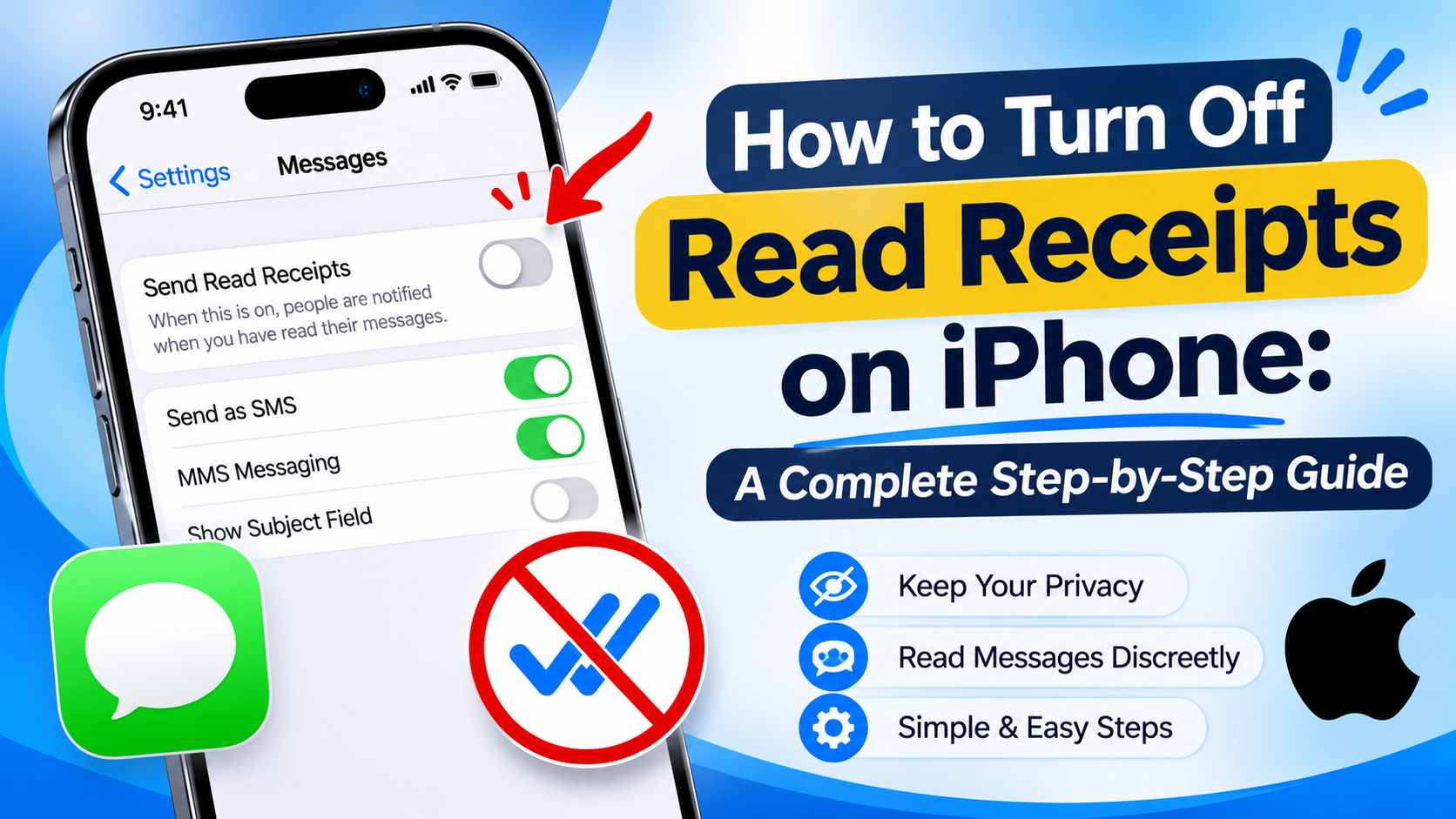
Do you sometimes open messages on your iPhone only to realize that the sender knows that you’ve read their message? While read receipts are helpful when it comes to communicating with people, many people do not want others to know that they have read the message.
If you wish to keep things private or you simply wish to reply when you’re ready, disabling the feature can help. Apple has made it easy to manage read receipts via Settings > Messages.
In this guide, we’ll tell you how to disable read receipts that iPhone users can follow easily. You can disable the read receipts for all conversations and also disable read receipts for specific contacts on your iPhone.
1. What Are Read Receipts on iPhone?
Read receipts is a messaging tool that will inform the sender when you have opened and read his or her message.
If you choose to have read receipts turned on, the sender will see some kind of message like “Read” or even the time when the message was read.
For instance, if one sends you a message via iMessage and then you read it at 10:30 AM, he or she may get a message from the system saying that you have read his/her message at that particular moment.
The read receipts tool can be used when you talk to your friends, relatives, and colleagues. Nevertheless, sometimes it can put additional pressure on people to respond right away.
2. How to Turn Off Read Receipts on iPhone for Everyone
If you do not want anyone using iMessage to see when you have read their messages, you can disable read receipts globally.
Follow these simple steps:
- Unlock your iPhone.
- Open the Settings app.
- Scroll down and tap Apps, then select Messages. On some older iOS versions, you can find Messages directly in Settings.
- Find the Send Read Receipts option.
- Turn the toggle off.
Once disabled, your iPhone will generally stop sending read receipts for supported iMessage conversations.
This is the easiest method if you prefer keeping your message-reading activity private across all conversations.
Remember that this setting applies to your iMessage conversations and does not control read receipts in every third-party messaging application.
3. How to Turn Off Read Receipts for One Person
Sometimes you may want to keep read receipts enabled for most contacts but disable them for a particular person.
Apple allows you to manage this setting separately for individual iMessage conversations.
Follow these steps:
- Open the Messages app on your iPhone.
- Find the conversation with the person you want to manage.
- Open the conversation.
- Tap the person’s name or profile picture at the top.
- Look for the Send Read Receipts option.
- Turn the toggle off.
Now, that particular contact will not receive read receipts from you in that conversation.
You can repeat these steps for other contacts whenever needed.
This option is helpful when you want to maintain normal messaging settings with most people while keeping certain conversations more private.
4. How to Turn Read Receipts Back On
If you previously disabled read receipts and want to share your message-reading status again, you can easily turn the feature back on.
To enable read receipts for everyone:
- Open Settings.
- Go to Apps.
- Select Messages.
- Find Send Read Receipts.
- Turn the toggle on.
To enable read receipts for an individual contact:
- Open the Messages app.
- Select the person’s conversation.
- Tap their name or profile picture.
- Find Send Read Receipts.
- Enable the option.
After enabling the setting, supported iMessage conversations can show read notifications when you open messages.
5. What Is the Difference Between Read Receipts and Delivered Notifications?
Many iPhone users confuse read receipts with delivery notifications. However, they provide different information.
Delivered: This means your message has successfully reached the recipient’s device or messaging service.
Read: This means the recipient has opened and viewed your message, provided read receipts are enabled and supported.
For example, if you send an iMessage to someone, you may first see “Delivered.” After the person opens the conversation, the status may change to “Read.”
Disabling read receipts does not normally prevent the sender from seeing that their message was delivered.
Understanding this difference can help you manage your messaging privacy more effectively.
6. Does Turning Off Read Receipts Work for All Messages?
No. Disabling read receipts through iPhone Settings mainly affects supported iMessage conversations.
Different messaging services have their own privacy controls.
Here is a general overview:
- iMessage: Read receipts can be managed through the iPhone Messages settings and individual conversations.
- SMS and MMS: Traditional text messages do not use Apple’s iMessage read receipt feature.
- WhatsApp: Read receipts have a separate setting within WhatsApp’s privacy options.
- Instagram: Message activity and read-status controls depend on Instagram’s own settings.
- Facebook Messenger: Read-status behaviour is controlled by Messenger.
If you want to disable read receipts in a third-party messaging application, you must change that application’s settings separately.
7. Why Are Read Receipts Still Showing After Turning Them Off?
Sometimes users disable read receipts but believe other people can still see when they read messages.
There are several possible reasons for this issue.
1. Check the individual conversation setting
A contact-specific setting may need to be checked separately. Open the conversation and review its Send Read Receipts option.
2. Check your iMessage settings
Make sure the global Send Read Receipts option is disabled under Settings > Apps > Messages.
3. Restart your iPhone
A simple restart can help resolve temporary software issues.
4. Update iOS
An outdated iOS version may sometimes cause unexpected behaviour. Check Settings > General > Software Update for available updates.
5. Check other messaging applications
If read notifications appear in WhatsApp or another messaging app, changing the Apple Messages settings will not affect them.
Review the privacy settings inside the relevant application.
8. Additional iPhone Privacy Tips for Messages
Turning off read receipts is one way to improve your messaging privacy. However, there are several other useful settings worth exploring.
Hide message previews: You can prevent message content from appearing on your Lock Screen by adjusting notification preview settings.
Go to Settings > Notifications > Messages > Show Previews and choose your preferred option.
Control notification access: Customize how message notifications appear, including sounds, banners, and Lock Screen alerts.
Filter unknown senders: Depending on your iOS version and available features, you can use message filtering options to separate messages from unknown senders.
Review contact sharing: Check which people and applications have access to your contact information.
These small changes can help you maintain better control over your personal information and communication preferences.
9. Benefits of Turning Off Read Receipts on iPhone
Disabling read receipts can offer several advantages, especially if you prefer a more private messaging experience.
- Better privacy: Other people cannot normally see when you have read their iMessages.
- Less pressure: You can respond when you have enough time rather than feeling obligated to reply immediately.
- More control: You decide whether to share your message-reading activity.
- Flexible communication: You can manage read receipts globally or for individual contacts.
- Reduced distractions: You can focus on other tasks without worrying about immediate responses.
Although read receipts can be useful, keeping them disabled is a personal choice.
Conclusion
For those that know how to disable read receipts for iPhone messaging, there is much benefit to be found when it comes to privacy and ease of communicating.
Apple has made it very easy for one to simply go into the messaging settings and change whether the read receipts are enabled or not, either for all supported iMessages or for individual contacts.
One can increase their privacy even further by changing the notification preview setting and privacy settings for other messaging apps.
If you wish to eliminate the social pressure of read receipts or keep your messaging private, disabling this feature is one way to do so.
Frequently Asked Questions (FAQs)
1. How do I turn off read receipts on my iPhone?
Open Settings, go to Apps > Messages, find Send Read Receipts, and turn the toggle off.
2. Can I turn off read receipts for just one person?
Yes. Open the conversation in Messages, tap the person’s name or profile picture, and disable Send Read Receipts.
3. Will someone know if I read their iMessage after turning off read receipts?
Generally, no. When read receipts are disabled, the sender will not receive a read notification from you in that supported conversation.
4. Does turning off read receipts also turn off delivered notifications?
No. Delivered and Read are different statuses. Disabling read receipts does not normally stop delivery notifications.
5. Can I still see when someone reads my messages if I turn off my read receipts?
Yes. Your read receipt setting controls whether you share your reading status. It does not automatically prevent you from seeing read receipts shared by other people.
Leave a Reply