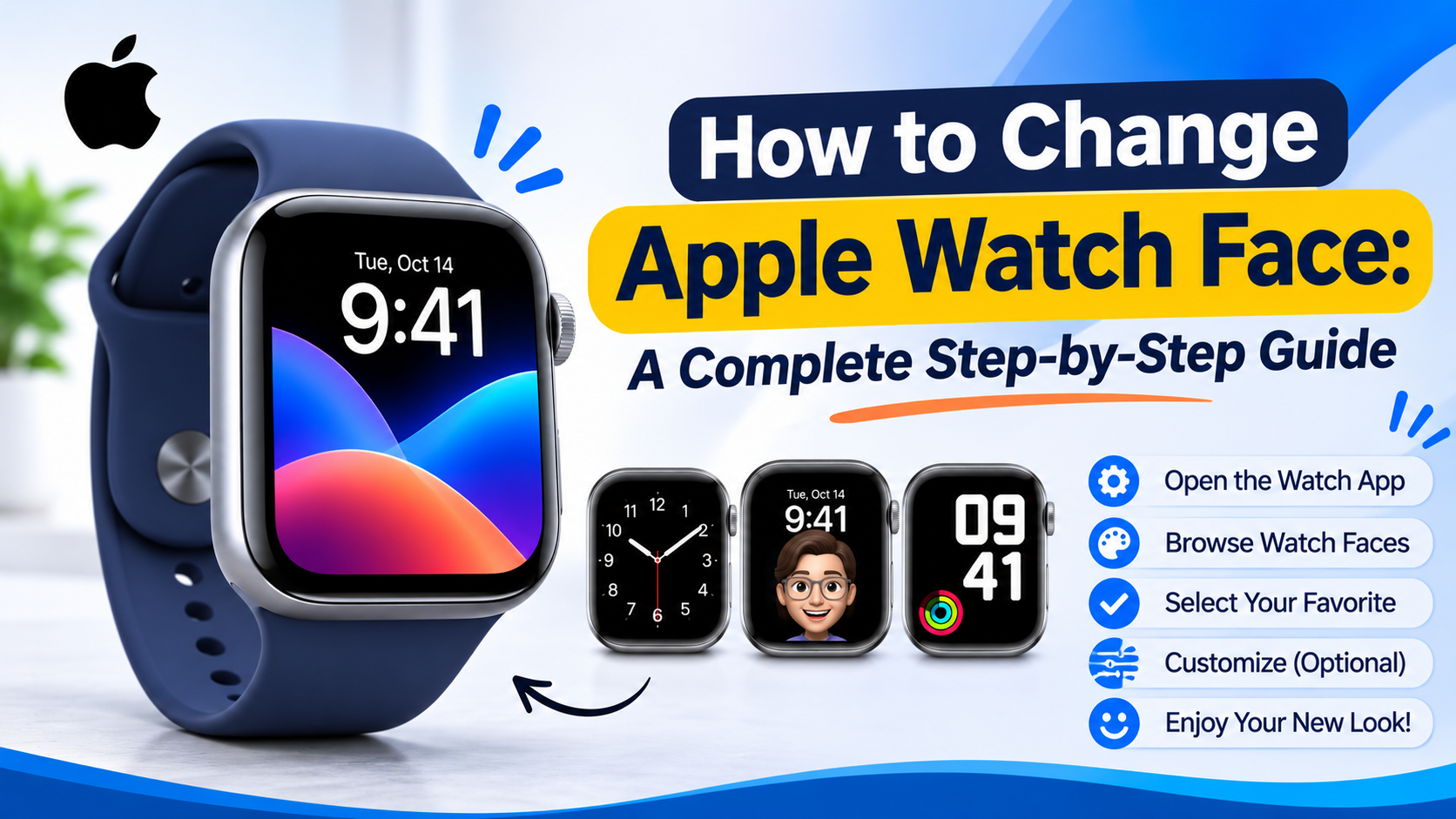
Apple Watch is not only a means of tracking the time. This gadget allows you to track physical activity, get notifications, monitor the activity, and access various types of useful information using your wrist. One of the unique features of Apple Watch is the possibility of customization of the watch faces depending on your preferences and needs.
You can choose among several different options for your watch face – whether you like a digital clock, an elegant analogue watch, a fitness-oriented watch, or a picture of your own choice – Apple Watch provides a great number of possibilities for customization.
If you wonder how to change Apple Watch face, you are in the right place. This article will tell you how to change Apple Watch faces, add new watches, customize colors, add personal pictures, and delete unnecessary watch faces.
This information is very useful for all users of Apple Watch.
1. How to Change Apple Watch Face Directly
The easiest way to change your Apple Watch face is directly from the watch. You do not need to open your iPhone or install any additional applications.
Follow these simple steps:
- Wake up your Apple Watch and make sure the current watch face is visible.
- Touch and hold the watch screen.
- Swipe left or right to browse your available watch faces.
- Find the design you want to use.
- Tap your preferred watch face to activate it.
Your Apple Watch will immediately display the selected design.
This method is especially useful when you want to switch between different watch faces quickly throughout the day.
Also learn: How to Tell If Someone Blocked You on Instagram
2. How to Add a New Apple Watch Face
If you want more design options, you can add new watch faces to your Apple Watch collection. Apple provides a Face Gallery where you can explore different designs and customize them.
Steps to add a new watch face:
- Open the Apple Watch app on your iPhone.
- Tap the Face Gallery option.
- Browse the available watch face categories.
- Select a design you like.
- Choose your preferred colour, style, and other available settings.
- Select complications if supported by the design.
- Tap Add to Watch.
The new watch face will be added to your collection and become active on your Apple Watch.
You can repeat these steps to create multiple watch faces for different occasions.
3. How to Customize Apple Watch Face Colours
Customizing colours is a great way to make your Apple Watch look unique. Depending on the selected watch face, you can change its background colour, numbers, hands, and other design elements.
How to customize colours:
- Open the Apple Watch app on your iPhone.
- Select Face Gallery.
- Choose the watch face you want to customize.
- Tap the colour or style options.
- Select your preferred colour.
- Preview the changes.
- Tap Add to Watch or update the existing face, depending on the available option.
You can also customize an existing watch face directly on your watch by touching and holding the display, selecting Edit, and adjusting the available options using the Digital Crown.
Choose colours that are easy to read and match your watch band or personal style.
Also learn: How to Check T-Mobile Order Status in 2026
4. How to Set a Photo as Apple Watch Face
One of the most popular Apple Watch customization features is the ability to use your favourite pictures as a watch face.
You can use a family photo, favourite memory, travel picture, pet photo, or any other suitable image from your photo library.
Steps to set a personal photo:
- Open the Apple Watch app on your iPhone.
- Tap Face Gallery.
- Find and select the Photos category.
- Choose the Photos or Shuffle style.
- Select the pictures you want to display.
- Adjust the available layout options.
- Tap Add.
Your selected photos will appear as your Apple Watch background.
You can also create a watch face directly from a picture on your Apple Watch. Open the Photos app, select an image, tap the Action button, and choose Create Watch Face.
This feature is perfect for people who want a more personal and attractive watch display.
5. What Are Apple Watch Complications?
Complications are small information widgets displayed on supported Apple Watch faces. They allow you to access important information without opening individual applications.
Depending on your watch face and installed apps, you can add features such as:
- Weather information.
- Battery percentage.
- Calendar events.
- Activity rings.
- Heart Rate.
- World Clock.
- Timers and alarms.
How to add complications:
- Touch and hold your current Apple Watch face.
- Tap Edit.
- Swipe through the customization screens until you reach the complications section.
- Select the position you want to customize.
- Turn the Digital Crown to browse available complications.
- Select your preferred option.
- Press the Digital Crown to save your changes.
Complications make your watch face more useful by displaying information that matters to you.
6. How to Change Apple Watch Face Using an iPhone
You can also manage your Apple Watch faces through your paired iPhone. This method is convenient because the larger screen makes it easier to explore different designs and customization options.
Follow these steps:
- Unlock your iPhone.
- Open the Apple Watch app.
- Tap My Watch.
- Browse your existing faces under My Faces.
- Select a face you want to manage or customize.
- Adjust the available design settings.
- Open Face Gallery to explore additional options.
Using your iPhone gives you a convenient way to manage your watch face collection and organize your preferred designs.
7. How to Delete an Apple Watch Face
Sometimes you may add too many watch faces and want to remove designs you no longer use. Apple makes it easy to delete unwanted watch faces.
Delete a watch face directly from your Apple Watch:
- Touch and hold the current watch face.
- Swipe left or right to find the face you want to remove.
- Swipe up on the selected face.
- Tap Remove.
Delete using your iPhone:
- Open the Apple Watch app.
- Go to My Watch.
- Find the My Faces section.
- Tap Edit.
- Select the delete option beside the watch face.
- Tap Remove to confirm.
Removing a watch face from your collection does not delete your photos or other personal information.
You can always add the same design again through Face Gallery.
8. How to Rearrange Apple Watch Faces
If you have several watch faces, arranging them in your preferred order can make switching between them easier.
You can organize your collection according to your daily activities.
For example, keep a simple watch face for everyday use, a fitness-focused face for workouts, and a professional design for work.
How to rearrange watch faces using your iPhone:
- Open the Apple Watch app.
- Tap My Watch.
- Find the My Faces section.
- Tap Edit.
- Drag the reorder icon beside a watch face.
- Move it to your preferred position.
- Tap Done.
You can also rearrange faces directly on your Apple Watch by touching and holding the display, then touching and holding the selected face again and dragging it left or right.
9. What to Do If You Cannot Change Your Apple Watch Face
Sometimes users experience problems when trying to change their watch faces. If your Apple Watch does not respond or you cannot find the expected options, try these troubleshooting methods.
Restart your Apple Watch: Turn off your watch and turn it on again. This can help resolve temporary software issues.
Check watchOS updates: Open Settings on your Apple Watch, select General, and tap Software Update to check for available updates.
Check the display: Make sure your screen is clean and responding properly to touch gestures.
Check your watch face collection: If you cannot find a particular design, open Face Gallery in the Apple Watch app and check whether it is available for your device.
Check face-switching settings: If swiping between faces does not work, open Settings on your Apple Watch, select Clock, and enable Swipe to Switch Watch Face if that option is available.
If the problem continues, consult Apple Support for further assistance.
10. Tips for Choosing the Best Apple Watch Face
Choosing the right watch face depends on your lifestyle, personal preferences, and the information you want to access.
Here are some helpful tips:
- For everyday use: Choose a clean and simple design that displays the time clearly.
- For fitness: Select a face that provides quick access to Activity and workout information.
- For work: Choose a professional design with calendar and weather complications.
- For personal style: Use a favourite photo or a colourful watch face.
- For travelling: Consider a face with World Clock information and useful travel-related complications.
The best watch face is one that looks good while providing the information you need throughout the day.
Conclusion
Modifying the appearance of your Apple Watch face is a great way to personalize your smartwatch and enhance your user experience. You may choose from various designs, personalize colors, add personal photos, show off complications, and arrange your favorite watch faces.
If you modify the Apple Watch face either from your wrist or via the Apple Watch application on your iPhone, then the procedure will take several steps.
By using the above guide on how to change Apple Watch face you will be able to make your own watch face that will match your preferences and needs.
Try out different designs and customization options and have fun with your Apple Watch!
Frequently Asked Questions (FAQs)
1. How do I change my Apple Watch face quickly?
Touch and hold your current watch face, swipe left or right to browse your saved faces, and tap the design you want to use.
2. Can I use my own photo as an Apple Watch face?
Yes. You can select a personal photo through the Photos category in Face Gallery or create a watch face directly from the Photos app on your Apple Watch.
3. How many watch faces can I add to my Apple Watch?
You can create a collection of multiple watch faces. The available options and limits may vary depending on your Apple Watch model and software.
4. Can I customize the colour of my Apple Watch face?
Yes. Many watch faces allow you to change colours, styles, backgrounds, and other design elements through the Edit option or Face Gallery.
5. Why can’t I swipe to change my Apple Watch face?
Check whether Swipe to Switch Watch Face is enabled under Settings > Clock on your Apple Watch. You can also touch and hold the display to browse your saved faces.
[…] Also learn: How to Change Apple Watch Face? (2026 Guide) […]