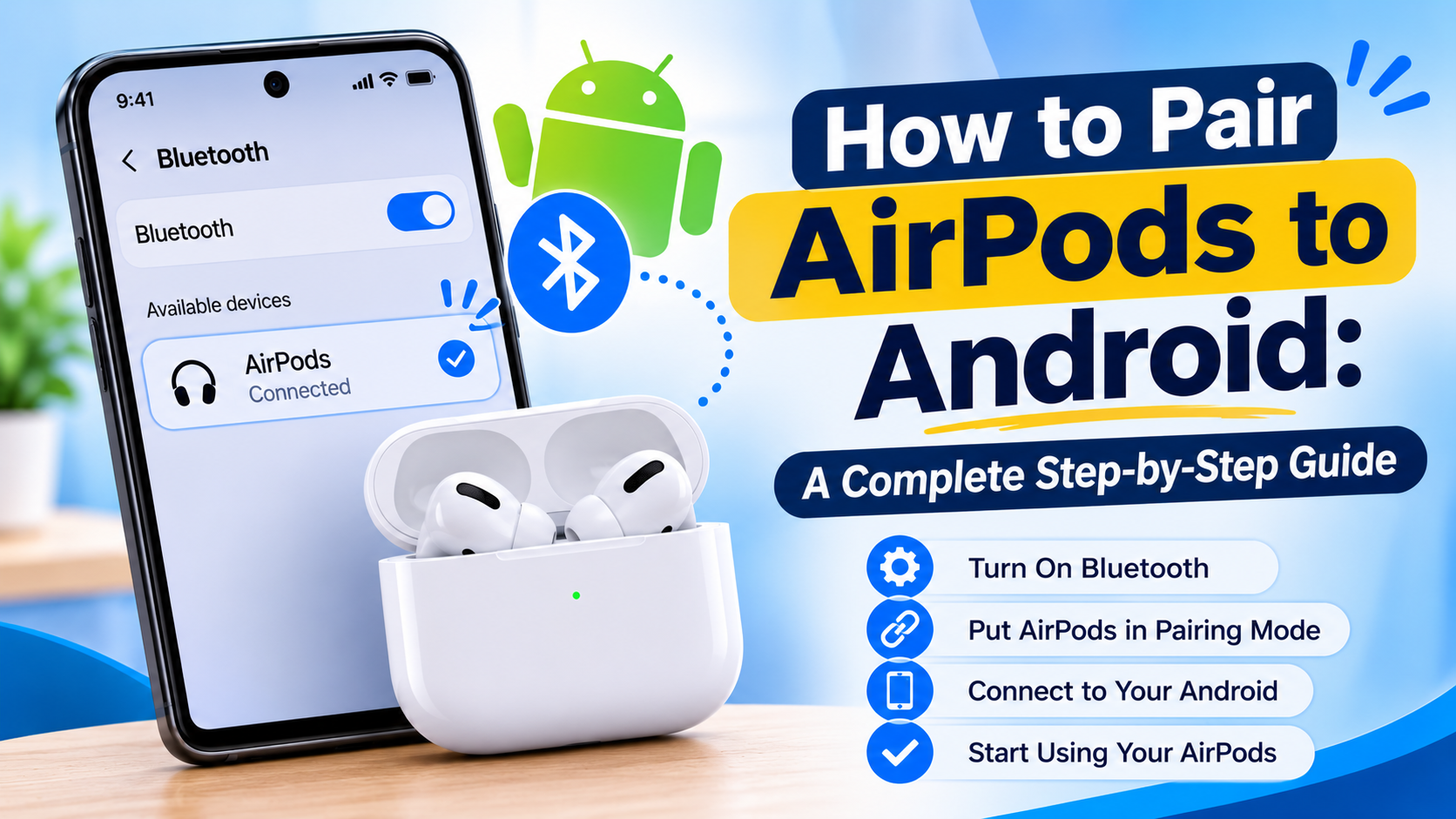
Apple AirPods are one of the most preferred wireless earphones owing to their ergonomic design, seamless connectivity, and sound quality. While AirPods are mainly used with Apple devices, it is possible to use them with Android mobile phones and tablets.
Whether you own a Samsung, OnePlus, Google Pixel, Xiaomi or any other Android smartphone, you don’t need to have an iPhone to use your AirPods. All you have to do is to connect them through Bluetooth and enjoy listening to music, watching movies, making calls and using other essential features.
That being said, not all features of the AirPods that are supported by Apple devices will work on your Android smartphone.
Here, we will tell you how to connect AirPods to your Android smartphone.
1. Can You Connect AirPods to an Android Phone?
Yes! AirPods can connect to Android phones because they support standard Bluetooth wireless connectivity.
This means you can use AirPods with almost any modern Android device that supports Bluetooth.
You can connect different AirPods models, including:
- AirPods (1st, 2nd, 3rd, and 4th generation).
- AirPods Pro.
- AirPods Pro 2.
- AirPods Max.
The exact features available may vary depending on the AirPods model and Android device.
Although AirPods work with Android, they do not provide the same level of integration as they do with Apple devices. Features such as automatic Apple device switching, Siri integration, and Apple’s Find My network may not be fully available.
2. How to Pair AirPods to Android Using Bluetooth
Connecting AirPods to an Android phone is simple. You only need to put your AirPods into pairing mode and select them from your phone’s Bluetooth settings.
Follow these steps:
Step 1: Open Bluetooth Settings
- Unlock your Android smartphone.
- Open the Settings application.
- Find and select Bluetooth or Connected Devices.
- Turn Bluetooth on.
Step 2: Put Your AirPods in Pairing Mode
For most standard AirPods models with a setup button:
- Place both AirPods inside their charging case.
- Open the charging case lid.
- Press and hold the setup button on the back of the case.
- Wait until the status light flashes white.
For AirPods 4, which do not have a physical setup button, double-tap the front of the charging case while the status light is on until it flashes white.
Step 3: Connect AirPods to Android
- Keep your AirPods in pairing mode.
- On your Android phone, select Pair new device or Available devices.
- Wait for your AirPods to appear in the Bluetooth device list.
- Tap your AirPods name.
- Select Pair if a confirmation message appears.
Once connected, your AirPods should be ready to use.
You can now play music, watch videos, and make phone calls using your wireless earbuds.
3. How to Connect AirPods to a Samsung Phone
Samsung smartphones use Android, so the AirPods pairing process is almost identical.
Whether you have a Samsung Galaxy S series, Galaxy A series, or another Bluetooth-compatible Samsung device, you can connect your AirPods easily.
Follow these steps:
- Open Settings on your Samsung phone.
- Tap Connections.
- Select Bluetooth.
- Enable Bluetooth.
- Put your AirPods into pairing mode.
- Find your AirPods under Available devices.
- Tap the device name.
- Confirm the pairing request.
After connecting, your AirPods should appear under Paired devices.
You can use them for music, video playback, and phone calls.
4. How to Connect AirPods to Android Without an iPhone
One common question is whether you need an iPhone to set up AirPods before connecting them to Android.
The answer is no. You can pair AirPods directly with an Android phone without using an iPhone.
You only need:
- A Bluetooth-enabled Android smartphone.
- A compatible AirPods model.
- Sufficient battery in the AirPods and charging case.
Open your Android Bluetooth settings, activate pairing mode on your AirPods, and select them from the available device list.
You do not need an Apple ID, an Apple device, or a special application for basic Bluetooth pairing.
5. What Features Work When Using AirPods with Android?
AirPods support several useful features when connected to Android, but the experience is different from using them with an iPhone.
Here are some features that generally work:
Music Playback: You can listen to music using popular applications such as Spotify, YouTube Music, and other audio platforms.
Phone Calls: You can use the built-in microphones to make and receive calls.
Touch Controls: Supported AirPods models allow you to use their touch or stem controls for playback and other supported actions.
Noise Cancellation: Compatible AirPods Pro models can provide Active Noise Cancellation when used with Android, using supported on-ear controls.
Transparency Mode: Supported models can also offer Transparency mode through their built-in controls.
However, automatic device switching, Siri, Apple-specific setup animations, and some advanced settings may not work as they do on Apple devices.
6. How to Check AirPods Battery on Android
Unlike iPhones, Android devices do not always display AirPods battery information automatically.
The availability of battery information depends on your AirPods model, Android device, and software.
You can try these options:
- Connect your AirPods to your Android phone.
- Check the Bluetooth device settings.
- Look for battery information if your phone supports it.
- Check whether a compatible third-party application offers battery monitoring.
Some third-party Android applications can display estimated AirPods battery levels and provide additional information.
However, their compatibility and accuracy can vary. Download applications only from trusted sources and review their permissions before installing them.
7. How to Fix AirPods Not Connecting to Android
Sometimes AirPods may not appear in the Bluetooth list or may fail to connect. Fortunately, most common connection problems can be resolved with a few simple troubleshooting steps.
1. Turn Bluetooth Off and On
Open Android Bluetooth settings, turn Bluetooth off, wait a few seconds, and turn it on again.
2. Check AirPods Battery
Make sure your AirPods and charging case have enough battery. Low battery levels may affect the pairing process.
3. Activate Pairing Mode Again
Place your AirPods in the charging case and repeat the pairing-mode instructions for your model. Make sure the status light flashes white.
4. Forget and Reconnect AirPods
If your AirPods were previously paired with your Android phone:
- Open Bluetooth settings.
- Find your AirPods.
- Tap the settings icon beside the device.
- Select Forget or Unpair.
- Put your AirPods back into pairing mode.
- Connect them again.
5. Restart Your Android Phone
Restarting your smartphone can help resolve temporary Bluetooth connection issues.
6. Reset Your AirPods
If the connection problem continues, consider resetting your AirPods according to Apple’s instructions for your specific model. A reset can remove previous pairing information.
If none of these methods works, check Apple’s support guidance or contact an authorized service provider.
8. Can You Use AirPods Pro with Android?
Yes! AirPods Pro can connect to Android smartphones through Bluetooth, just like regular AirPods.
You can enjoy several features, including:
- Wireless music playback.
- Phone calls.
- Active Noise Cancellation.
- Transparency mode.
- Supported stem controls.
However, some features require Apple’s ecosystem and may not be available on Android.
For example, personalized spatial audio setup, automatic Apple device switching, and certain advanced settings are designed for compatible Apple devices.
Even without these features, AirPods Pro can still provide a useful wireless listening experience on Android.
9. Tips for Getting the Best AirPods Experience on Android
If you want to use AirPods with an Android smartphone regularly, follow these simple tips:
- Keep your AirPods and charging case charged.
- Keep your Android Bluetooth software updated.
- Avoid connecting your AirPods to multiple devices unnecessarily.
- Keep your AirPods clean for better sound and microphone performance.
- Use compatible music applications for better audio control.
- Check battery levels regularly.
- Keep your AirPods firmware updated when you have access to a compatible Apple device.
These habits can help maintain a stable connection and improve your everyday listening experience.
Conclusion
However, connecting AirPods to an Android phone is not as complicated as some believe. Given that AirPods utilize regular Bluetooth technology, it is possible to pair AirPods with Samsung phones, OnePlus devices, Google Pixel phones, Xiaomi, and all other kinds of Android devices without having to own an iPhone.
You only need to enable Bluetooth on your Android phone, place AirPods in pairing mode, choose them among the list of devices, and then pair them successfully.
Although some features of AirPods are Apple exclusive, you will still be able to listen to music wirelessly, make phone calls and use other basic functionalities.
This article provides a detailed guide on how to pair AirPods with Android.
Frequently Asked Questions (FAQs)
1. Can I connect Apple AirPods to an Adroid phone?
Yes. AirPods support Bluetooth connectivity and can connect to Android smartphones just like other wireless earbuds.
2. Do AirPods work with Samsung phones?
Yes. You can pair AirPods with Samsung Galaxy smartphones through the Bluetooth settings.
3. Do I need an iPhone to connect AirPods to Android?
No. You can connect AirPods directly to an Android device without an iPhone or Apple ID.
4. Can I use AirPods Pro noise cancellation on Android?
Yes. Supported AirPods Pro models can use Active Noise Cancellation and Transparency mode on Android through their built-in controls.
5. Why are my AirPods not showing up on my Android phone?
Your AirPods may not be in pairing mode, may have low battery, or may already be connected to another device. Activate pairing mode again and refresh your Android Bluetooth device list.
Leave a Reply